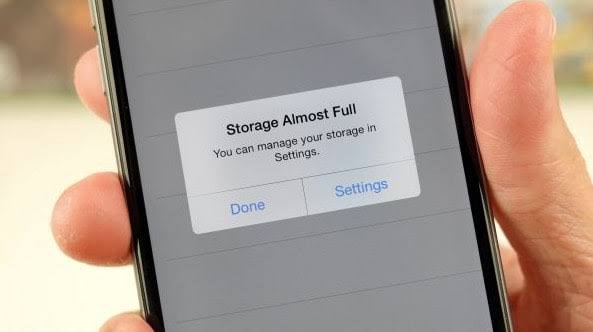
Why iPhone Storage Fills Up Faster Than You Think
Many people assume photos are the biggest storage hog, but that’s not always true.
Your iPhone storage is often consumed by:
* Apps you rarely use
* Cached social media files
* Downloaded videos and podcasts
* Messages with photo and video attachments
* Safari website data
* Duplicate photos and screenshots
Before deleting anything important, it’s worth identifying what’s actually using your storage.
How to Check What’s Taking Up Space
To see a breakdown of your storage:
Settings → General → iPhone Storage
Here you’ll find exactly how much space each app, photo library, and category is using.
Apple also provides recommendations that can help you free up storage quickly.
Enable iCloud Photos
One of the easiest ways to keep your photos while reducing local storage usage is enabling iCloud Photos.
When enabled, your original photos can be stored in iCloud while smaller, device-optimized versions remain on your iPhone.
To enable it:
Settings → Apple ID → iCloud → Photos → Sync This iPhone
This allows you to keep your memories accessible without filling up your device.
Remove Apps You Don’t Use
Many users have apps installed that haven’t been opened in months.
Go to:
Settings → General → iPhone Storage
Review your installed apps and remove those you no longer need.
You can always reinstall them later if necessary.
Offload Unused Apps
A feature many iPhone owners don’t know about is Offload Unused Apps.
This removes the app itself while preserving your documents and data.
When you reinstall the app, your information is restored.
This can free up significant storage without losing anything important.
Clear Safari Data
Websites store temporary files that build up over time.
To clear them:
Settings → Safari → Clear History and Website Data
This often frees up storage and can improve browser performance.
Review Large Message Attachments
Messages containing photos and videos can quietly consume several gigabytes of storage.
Go to:
Settings → General → iPhone Storage → Messages
Review large attachments and remove items you no longer need.
Delete Duplicate Photos
Recent iPhone versions include a built-in duplicate detection feature.
Open the Photos app and check:
Albums → Utilities → Duplicates
Many users discover hundreds of duplicate images they didn’t realize existed.
Why Storage Problems Sometimes Indicate a Bigger Issue
In some cases, storage problems may be accompanied by:
* Slow performance
* App crashes
* Freezing
* Overheating
* Failed software updates
If your iPhone continues experiencing issues even after freeing storage, a professional diagnostic can help determine whether there is an underlying hardware or software problem.
iPhone Support and Diagnostics in Calgary
If your iPhone is running out of storage, performing slowly, or experiencing unusual behavior, professional diagnostics can help identify the cause. Our Calgary technicians assist customers with iPhone troubleshooting, battery issues, software problems, data recovery, and other device concerns.
Whether you need advice on improving performance or help resolving a persistent issue, we’re here to help Calgary iPhone users keep their devices running smoothly.