MacBook Won’t Turn On? Here’s What to Check Before You Pay for a Repair
There are few things more stressful than opening your MacBook, pressing the power button and getting absolutely nothing.
No Apple logo. No startup sound. No screen. Sometimes there is not even a sign that the MacBook is charging.
The first thought is usually, “The MacBook is dead.”
That is not necessarily the case.
A MacBook that does not turn on can have a surprisingly simple problem, such as a charger, charging connection or software issue. It can also have a more serious hardware problem involving the battery, display, charging circuit or logic board.
Before spending money on a repair, there are a few things worth checking yourself.
If you have already tried the basic steps below and your MacBook is still completely unresponsive, the next step should be a proper diagnosis rather than repeatedly trying to power it on.
First, figure out what “won’t turn on” actually means
This sounds obvious, but it matters.
There is a big difference between:
* The MacBook shows no signs of life at all
* The MacBook turns on but the screen stays black
* The Apple logo appears and then disappears
* The MacBook starts but gets stuck during startup
* The MacBook works only when connected to the charger
* The MacBook appears to be running but the display is not working
Those problems can have completely different causes.
For example, if you can hear the fan, keyboard backlight or startup sounds but the display remains black, the MacBook may actually be turning on. In that situation, replacing the battery would not solve the problem.
The first job is therefore to work out whether the MacBook itself is not starting or whether the display is the problem.
- Check the charger and charging connection
This is the simplest thing to check, and it is also one of the easiest things to overlook.
Connect the MacBook to its charger and leave it connected for a while.
If you are using USB-C, try another compatible charging cable and, if possible, another compatible power adapter.
Also try another wall outlet.
A damaged charging cable can look perfectly normal from the outside while failing internally.
If your MacBook has a MagSafe connector, check the connector and the charging port for visible dirt or debris. Do not poke metal objects into the port.
If the MacBook starts charging after changing the cable, adapter or outlet, you may have found the problem.
If absolutely nothing changes, continue troubleshooting.
- Look for any signs of life
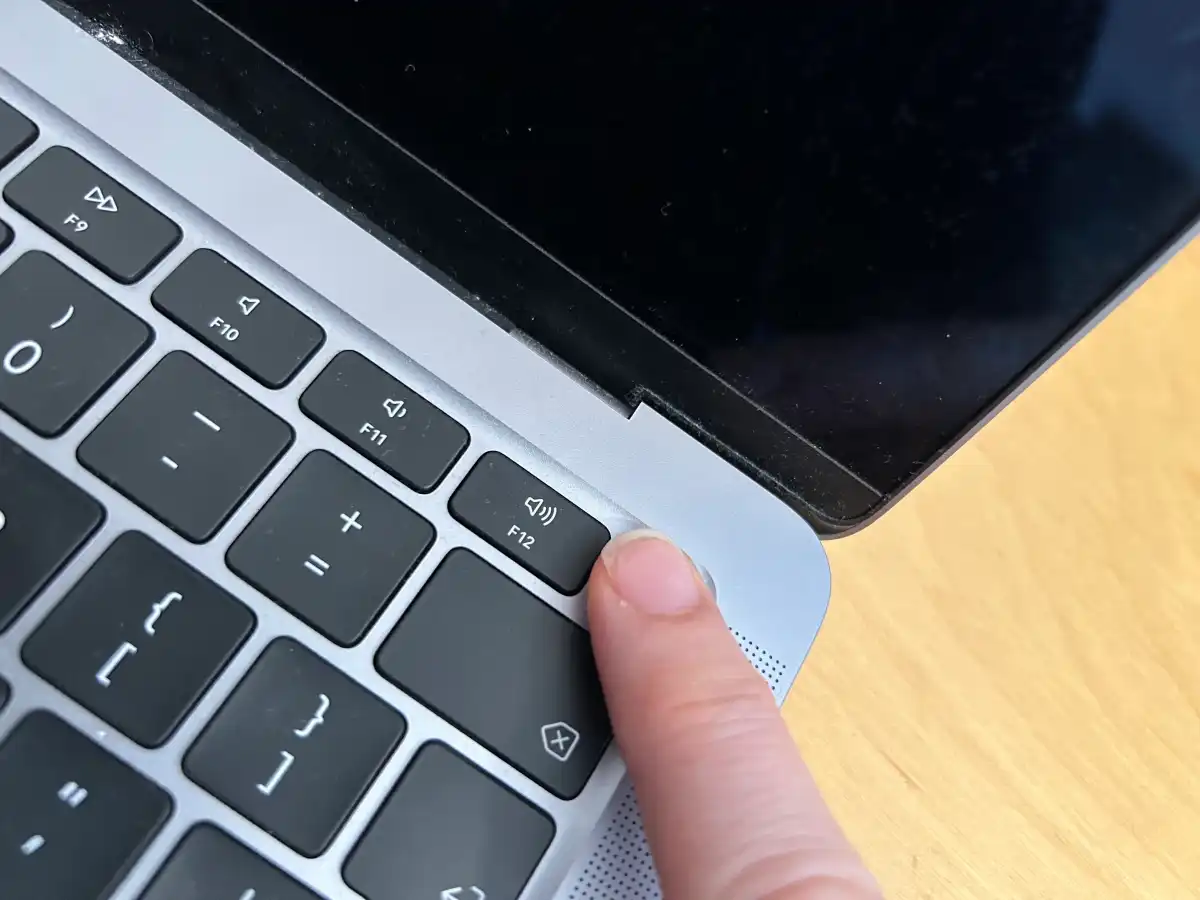
Press the power button once and pay attention.
Do you hear anything?
Does the keyboard light up?
Does the Touch Bar or display show anything?
Can you hear a fan?
Does the charger appear to be supplying power?
Does the screen become slightly brighter even though you cannot see the Apple logo?
These details are useful because a MacBook that is completely dead is different from one that is running but has a display problem.
If you are bringing the computer to a repair shop, tell the technician exactly what you observed.
“It’s not turning on” is useful information.
“It’s not showing an image, but I can hear the fan and the keyboard lights come on” is much more useful.
- Try starting it again after disconnecting accessories
Disconnect everything connected to the MacBook.
That means external monitors, USB hubs, hard drives, docks, memory cards and other accessories.
Then try starting the MacBook again.
A faulty peripheral or accessory can occasionally interfere with startup.
It is a simple test and it costs nothing.
- If the MacBook was recently dropped, stop guessing
Physical damage changes the situation.
If your MacBook stopped working immediately after being dropped, do not assume the problem is simply a dead battery.
A fall can damage the display assembly, internal connectors, charging components or the logic board.
The same applies if the MacBook was recently exposed to liquid.
Coffee, water, juice and other liquids can cause damage even when the MacBook appears to work normally immediately afterward.
If liquid has entered the MacBook, shut it down and disconnect the charger.
Do not keep turning it on to see whether it works.
And don’t rely on the old rice trick. Rice does not remove liquid or repair corrosion inside a computer.
The sooner liquid damage is properly assessed, the better the chance of preventing additional damage.
- What if the MacBook turns on but the screen is black?
This is an important distinction.
If you can hear the MacBook running but cannot see anything on the display, the computer may not actually be dead.
The problem could involve the display, display connection, backlight or another component.
This is one reason we recommend diagnosis before ordering an expensive screen replacement.
A black display does not automatically mean that the entire screen needs to be replaced.
A technician should determine what has actually failed first.
- What if it only works when the charger is connected?
This can point toward a battery or charging-related problem, although it is not enough to diagnose the exact fault.
If your MacBook shuts down immediately after you disconnect the charger, or the battery percentage behaves strangely, the battery may need attention.
Older MacBooks can also develop batteries that have significantly degraded over time.
However, battery symptoms can sometimes be confused with charging or power-management problems.
Again, diagnosis matters.
- What if the Apple logo appears but the MacBook never finishes starting?
That is a different type of problem.
If you see the Apple logo but the MacBook becomes stuck, repeatedly restarts or never reaches the login screen, the cause may be related to macOS, storage, hardware or another startup problem.
If your files are important, be careful about immediately erasing the MacBook or reinstalling macOS.
A repair technician should first determine whether your data is safe and whether the problem can be resolved without unnecessary data loss.
When should you stop troubleshooting?
A few basic checks at home are reasonable.
Continuing to experiment becomes a bad idea when:
* The MacBook was exposed to liquid
* It was dropped or physically damaged
* There is a burning smell or unusual heat
* The charging area becomes unusually hot
* The MacBook repeatedly shuts down
* It shows signs of power but never produces an image
* You hear unusual sounds from inside
* The MacBook has important data that you cannot afford to lose
* You have already tried different charging equipment and it remains completely unresponsive
At that point, guessing can cost more than getting a proper diagnosis.
Does a MacBook that won’t turn on need to be replaced?
Not necessarily.
This is one of the most common questions people ask after a MacBook suddenly stops working.
The answer depends on what has failed and the age and condition of the MacBook.
A battery, charging component, display-related problem or certain board-level faults can potentially be repaired without replacing the entire computer.
That is why a diagnosis is important before deciding that the MacBook is finished.
For some older machines, replacement may make more financial sense. For others, repairing the existing MacBook can be considerably more practical.
The right answer depends on the actual fault.
How much does MacBook repair cost in Calgary?
There is no honest single price for “MacBook repair.”
A battery replacement, screen problem, charging issue and logic-board fault are completely different repairs.
The MacBook model also matters. A MacBook Air and a MacBook Pro can use very different components, and newer Apple Silicon models can have different repair considerations from older Intel machines.
The best way to get an accurate price is to have the MacBook diagnosed first.
At TechFix Craft, we provide a diagnosis before starting the repair and explain the repair cost before proceeding. If the repair does not make financial sense, you should know that before spending money on it.
Need MacBook repair in Calgary?
If your MacBook will not turn on and the basic checks above have not helped, bring it in for a proper assessment.
TechFix Craft is located at Unit #15, 1420 9 Ave SE, Calgary, near Inglewood and Ramsay.
We repair MacBooks along with iPhones, Samsung devices, iPads, Windows laptops and other electronics.
You can walk in without an appointment, or contact us before coming in.
The first step is simple: let us find out what is actually wrong with the MacBook.
TechFix Craft
Unit #15, 1420 9 Ave SE
Calgary, AB
587-585-4032
Open 7 days a week, 10am to 7pm.
Frequently Asked Questions
Can a MacBook be repaired if it has no power at all?
Sometimes, yes. A MacBook with no visible power can have several possible causes, including charging, battery, power or logic-board problems. A technician needs to diagnose the device to determine the actual fault.
Should I keep trying to turn on a MacBook after liquid damage?
No. If liquid has entered the MacBook, shut it down and disconnect the charger. Repeatedly powering it on can make a liquid-related problem worse.
Is a black MacBook screen always a broken screen?
No. A black screen can have several possible causes. The MacBook may actually be running while the display or another component is failing.
Is it worth repairing an older MacBook?
It depends on the model, condition, repair required and cost. A relatively inexpensive repair can make sense even on an older MacBook, while an expensive repair on an obsolete machine may not. A proper diagnosis helps you make that decision.
Do I need an appointment?
No. TechFix Craft accepts walk-ins at its Calgary SE location. You can also call ahead if you would like to discuss the problem before visiting.